Ever found yourself hesitating before uploading sensitive documents to Google’s NotebookLM? Maybe you’re a researcher with confidential data, a journalist protecting sources, or just someone who’d rather not send their private files to the cloud. If that sounds familiar, let me introduce you to Symbiont.
What’s Symbiont?
Symbiont is an alternative to Google’s NotebookLM that ensures privacy and data control. It’s an open-source tool that lets you chat with your documents, analyze PDFs, and get AI-powered insights. But everything runs either on your own computer or your chosen model provider. You are in complete control of your data.
In this guide, I’ll walk you through setting up Symbiont from scratch. We’ll use Netmind (a platform that provides the latest open source AI models) for our setup. But you can use any LLM provider of your choice, including self-hosting the LLM on your own hardware!
What You’ll Need
Before we dive in, make sure you have:
- A computer running macOS, Linux, or Windows (with WSL)
- Docker installed (for running the database services)
- About 15 minutes of your time
That’s it! The setup scripts do most of the work.
Step 1: Get Symbiont Running
First, let’s grab the code and get everything installed:
# Clone the repository
git clone https://github.com/symbiont-me/symbiont symbiont
cd symbiont

# Run the setup script
./start-app.sh
This script does all the boring work for you:
- Setup env variables required for running the app
- Installs the required tools (Backend and Frontend dependencies)
- Spins up your local database (MongoDB for storing your documents and chats, Qdrant for RAG)
- Starts the backend API server
- Launches the web interface
Step 2: Setting Up Netmind for Open Source Models
We’re using NetMind in this guide because it provides simple API access to a variety of open-source models at competitive prices. You can swap between Llama, Deepseek, and others depending on your needs. You can use a faster model for quick questions, a more capable one for complex analysis. And if you ever want to switch providers or run models locally, Symbiont’s architecture makes that easy.
Getting Your Netmind API Key
-
Head over to netmind.ai and sign up

-
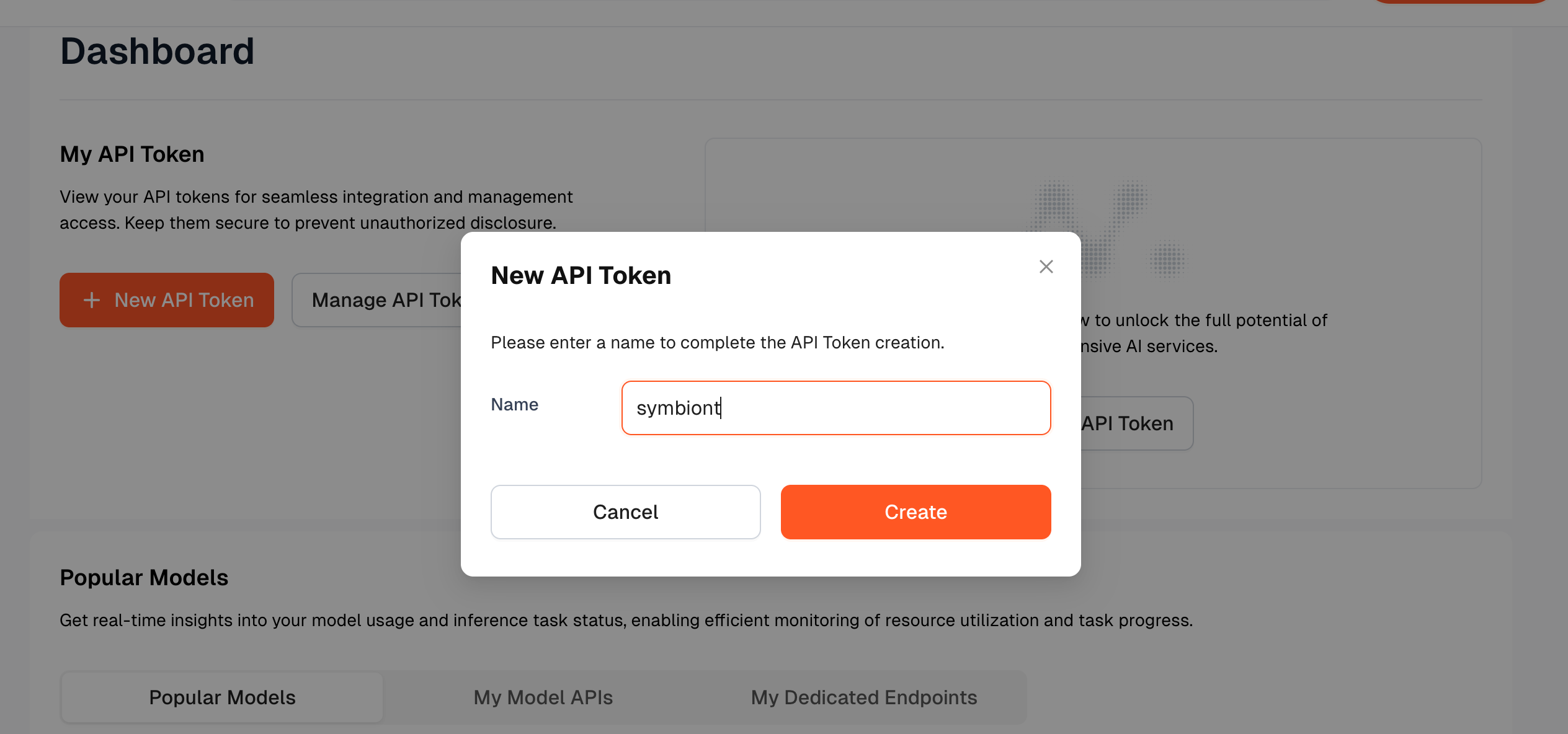
On the Dashboard, create a new token
Step 3: Choosing Your AI Model
One of the cool things about using Netmind is the variety of models you can choose from. Here are some solid options:
- GLM-4.6
- Gemini-3-pro-preview
- DeepSeek-V3.2-Exp
- gpt-oss-120b
Let’s choose one by going to the Netmind’s Model library
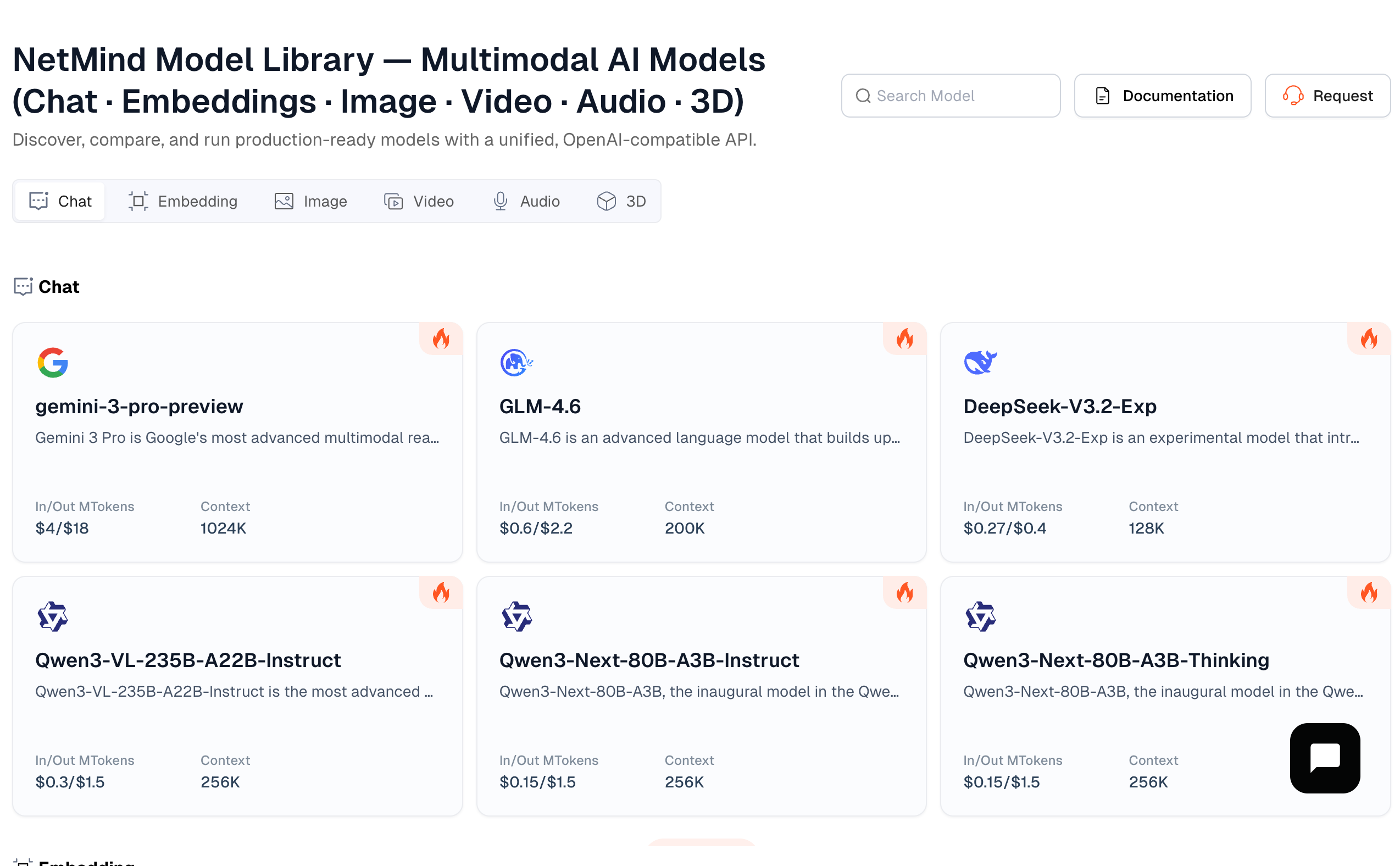
We will pick the Deepseek model for our example:
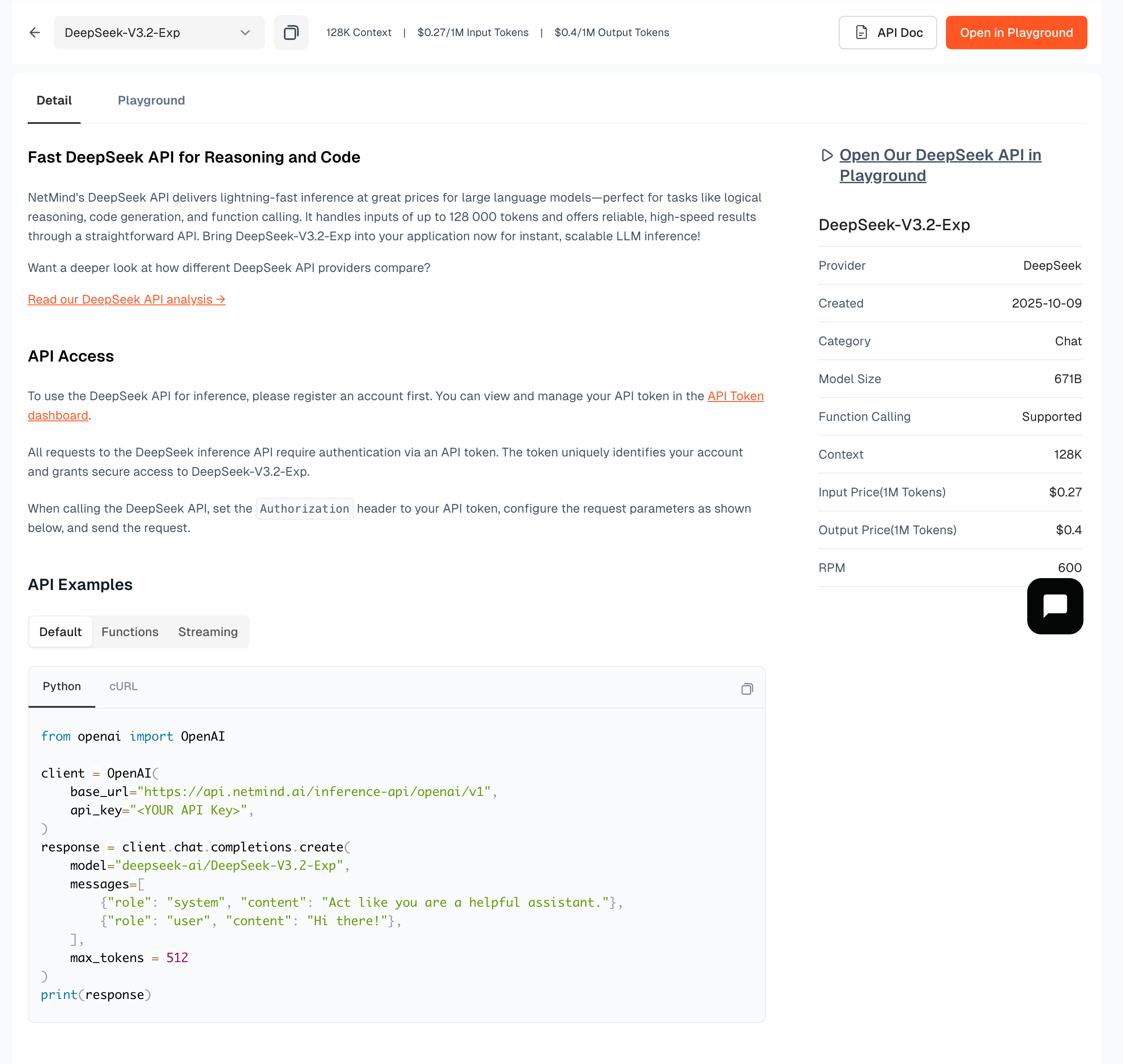
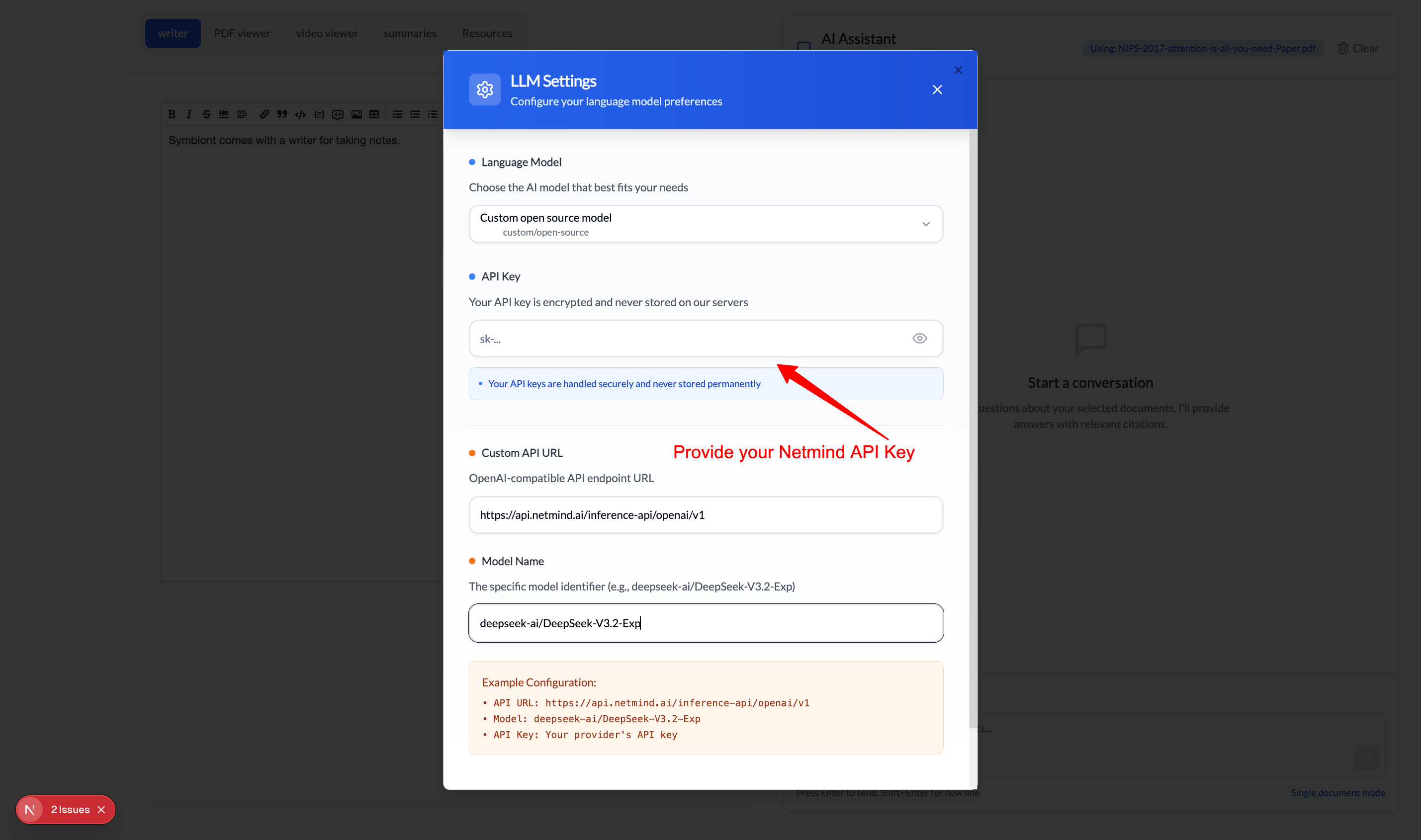
Note down the endpoint url and your api Key. We will configure this in the frontend.
Step 4: Taking It for a Spin
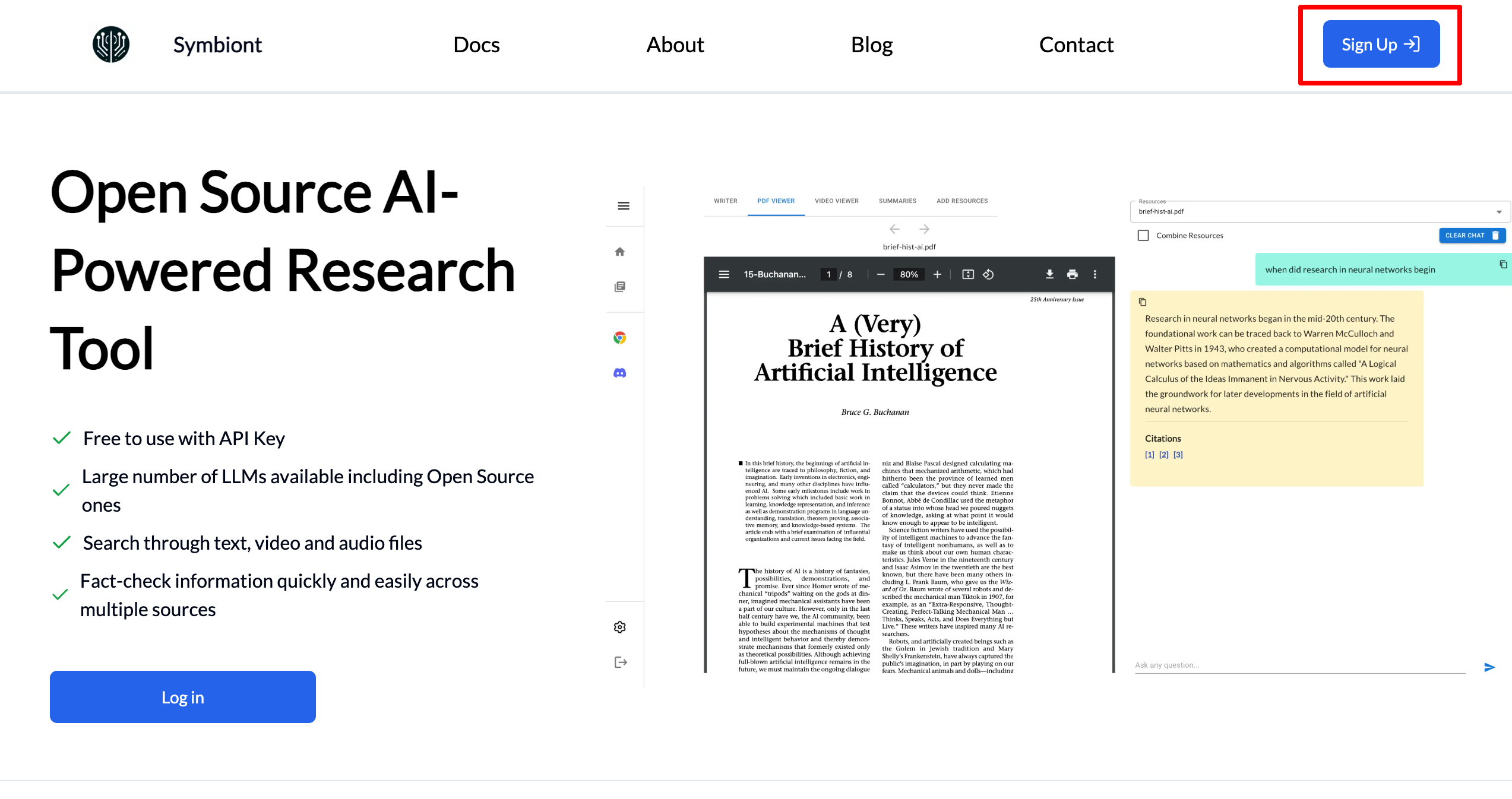
Once everything’s running, open your browser and head to http://localhost:4000. You should see Symbiont’s clean interface ready to go.
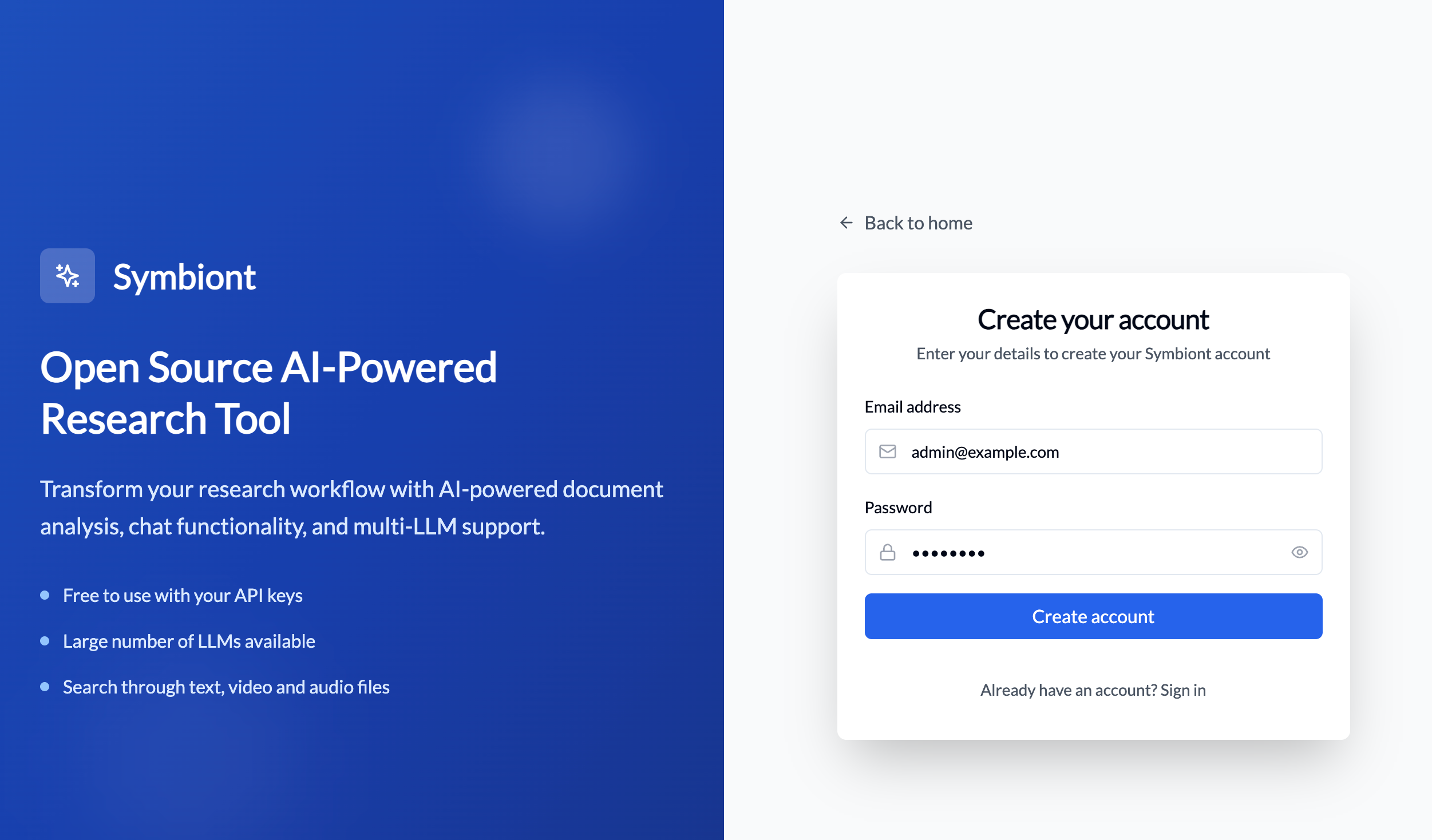
Sign up
- Sign up an account. This can be anything like [email protected]
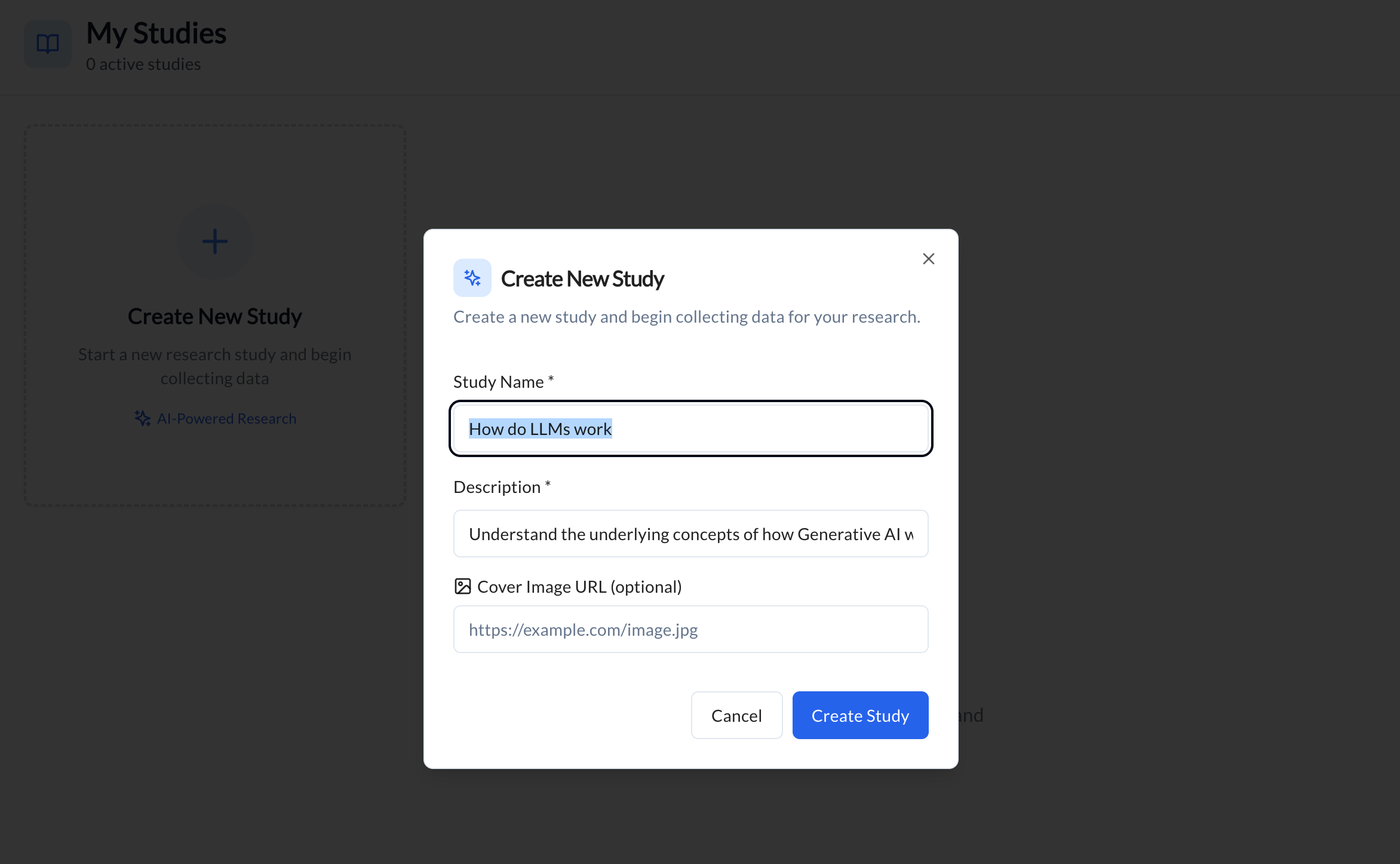
Create a Study
After signing up, you’ll be directed to the dashboard. Click on the “Create Study” button to start a new study. A study is like a Notebook. You can use it to organise your research on a topic.
Once the study is created it will show up in your dashboard.

Click on the Study to access it.
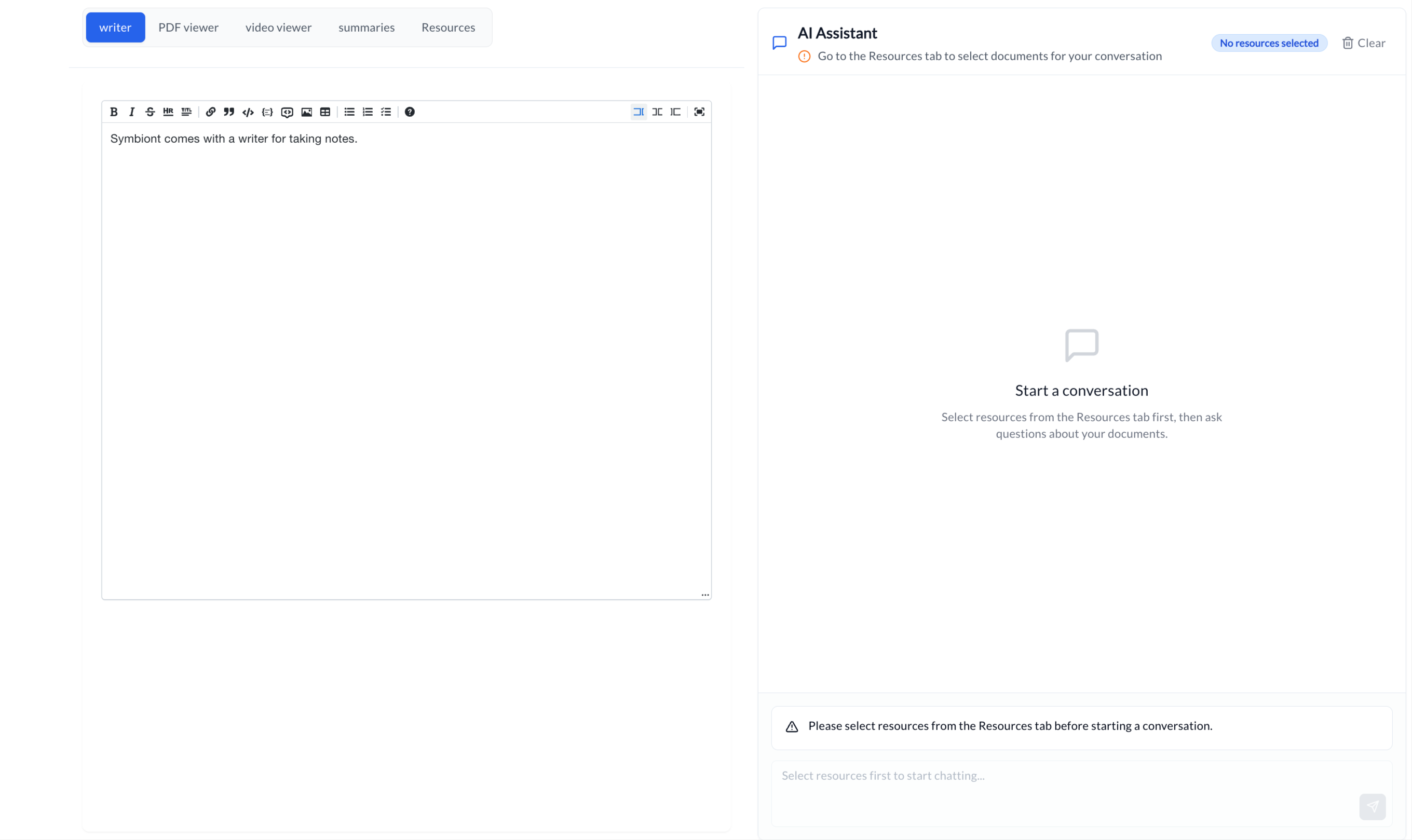
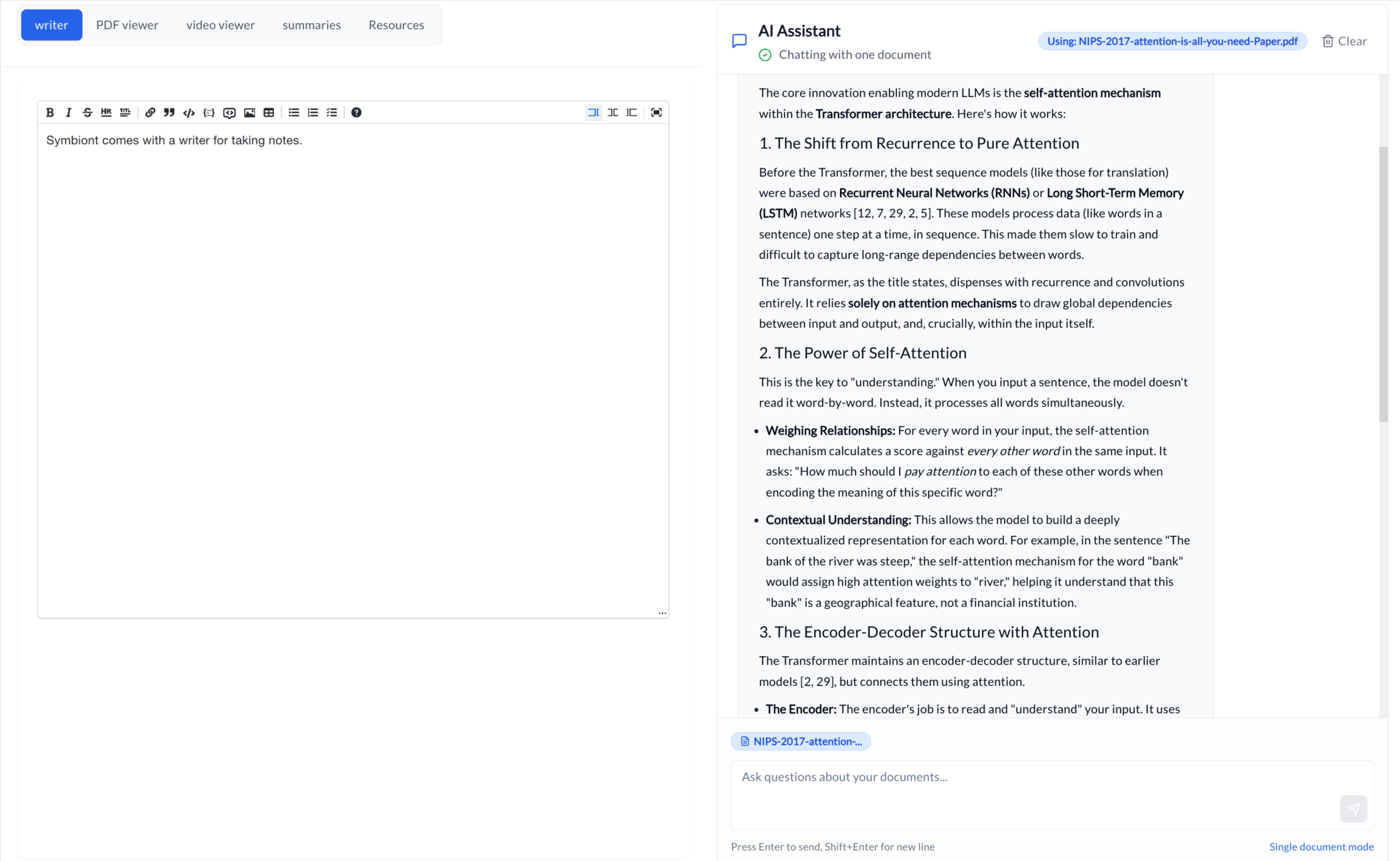
The above image shows the Study you are in. Symbiont comes with a writing tool that allows you to take notes or write whole articles as you chat with the AI assistant to better understand the content.
Setting up an LLM
Once we have created a study, we need to set up an LLM that we want to use as our AI assistant. A simple way to do this through the UI is to click the Settings icon in the sidebar and access the LLM menu.
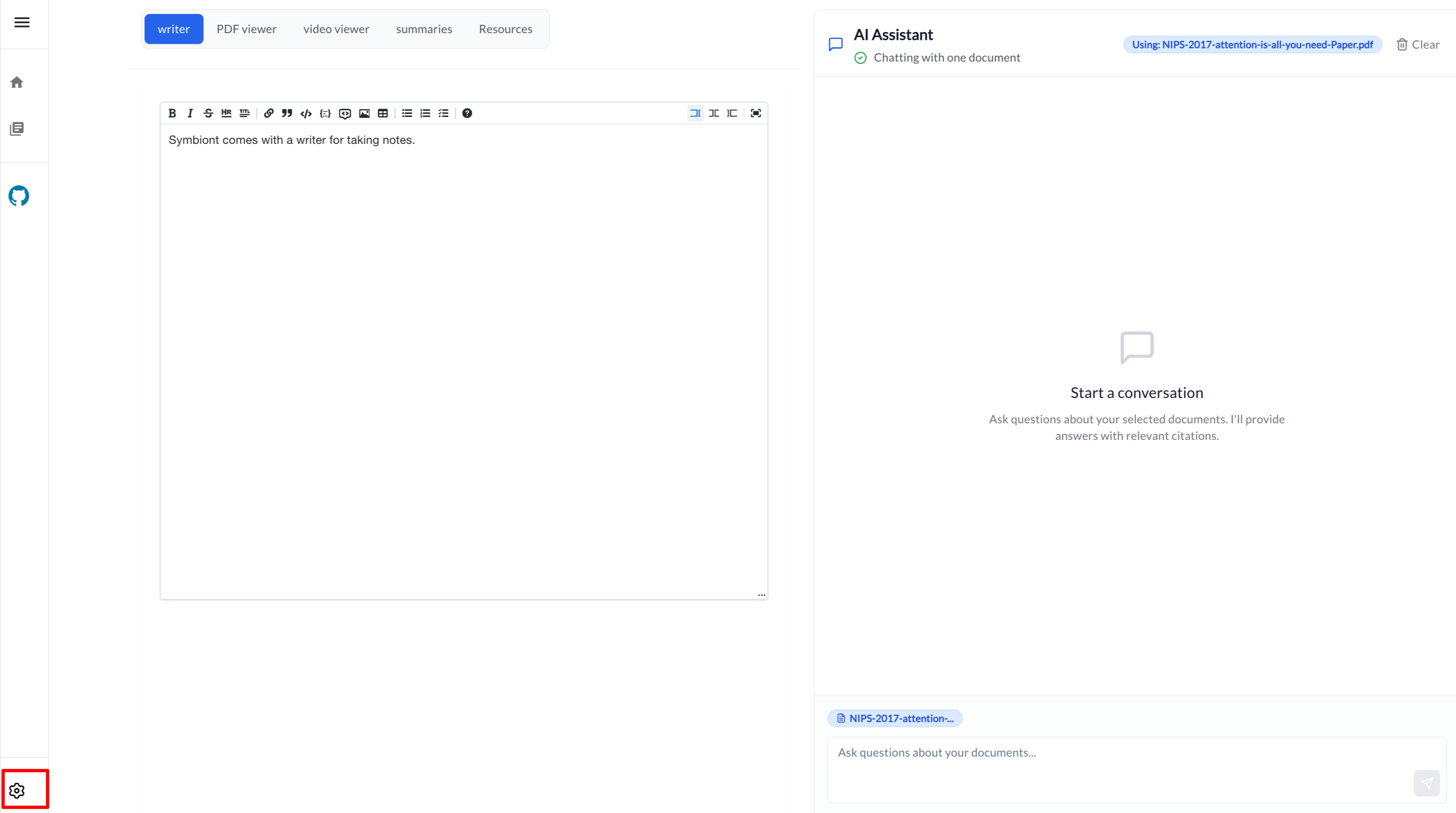
We will use the Netmind API to set up our LLM. If you already have the API key from Netmind you can use that. Otherwise, please see the Getting your Netmind API key section above.
Your First Document Chat
Click on the Resources tab in the navbar:
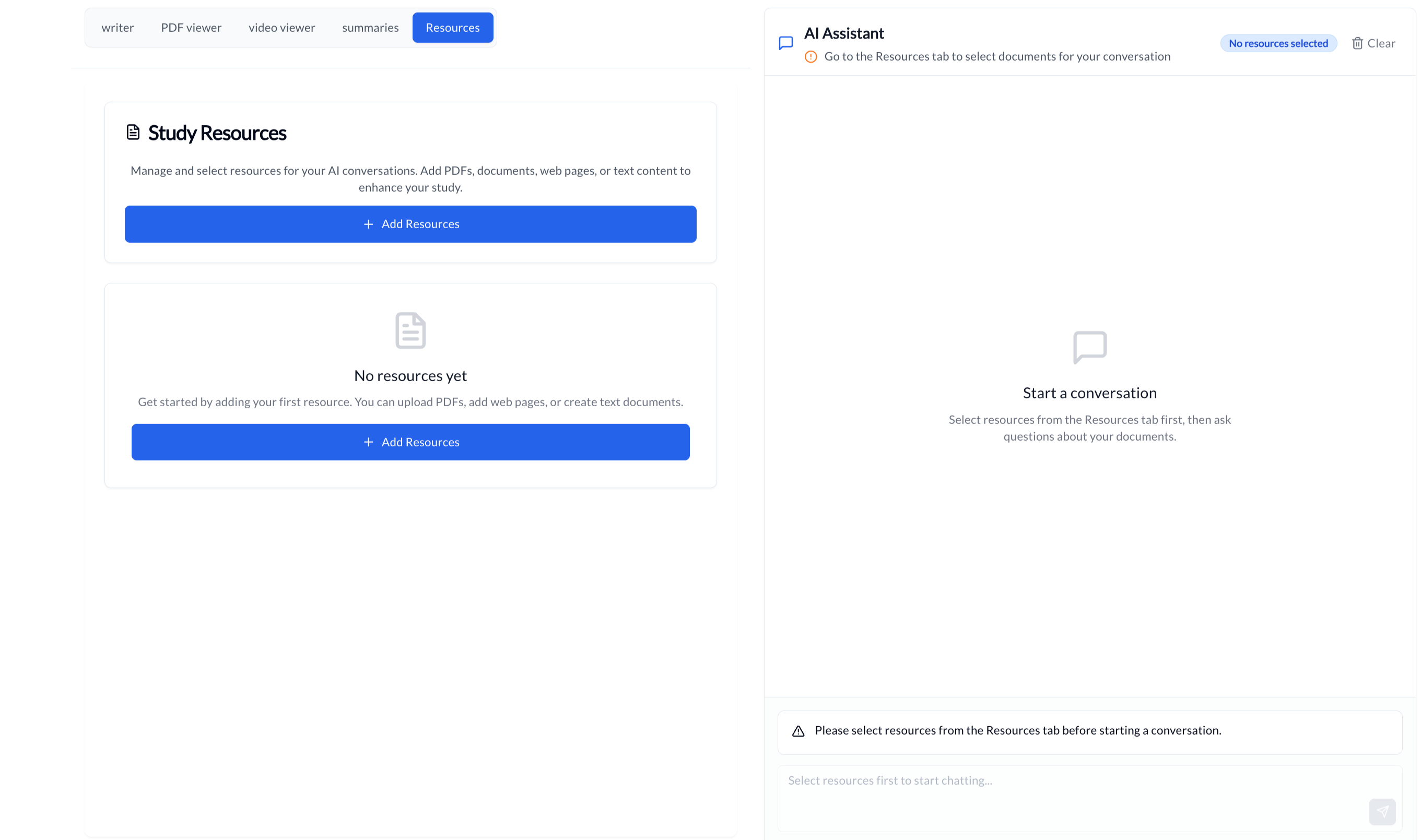
- Upload a Document: Click the upload button and drop in a PDF. Maybe that research paper you’ve been meaning to read, or a long report from work.
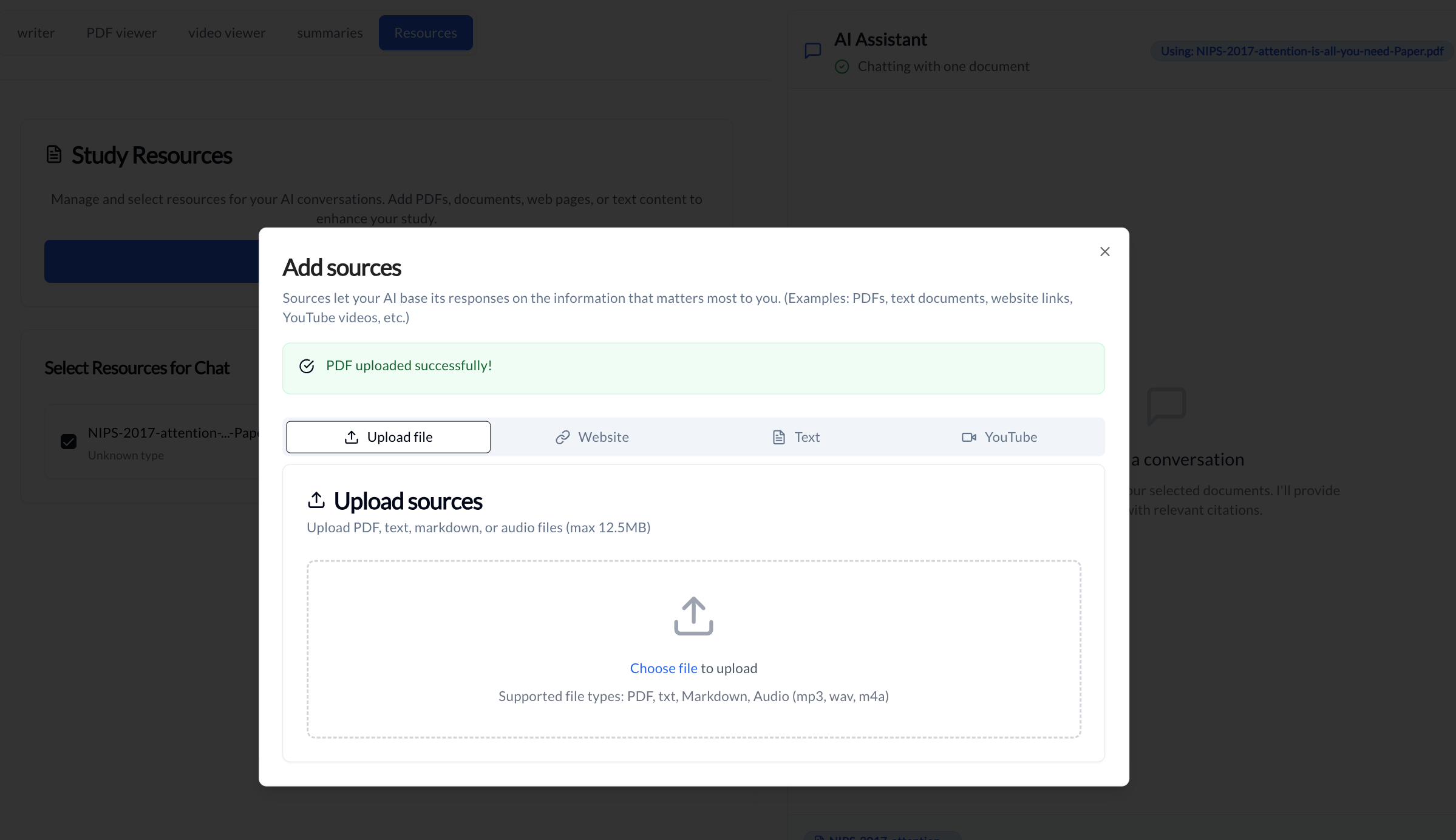
- Wait for Processing: Symbiont needs a moment to analyze the document and prepare it for AI search. You’ll see a progress indicator.

- Start Asking Questions: Once it’s ready, try asking:
- “What are the main points in this document?”
- “Can you summarize all the sections?”
- “What conclusions does the author reach?”
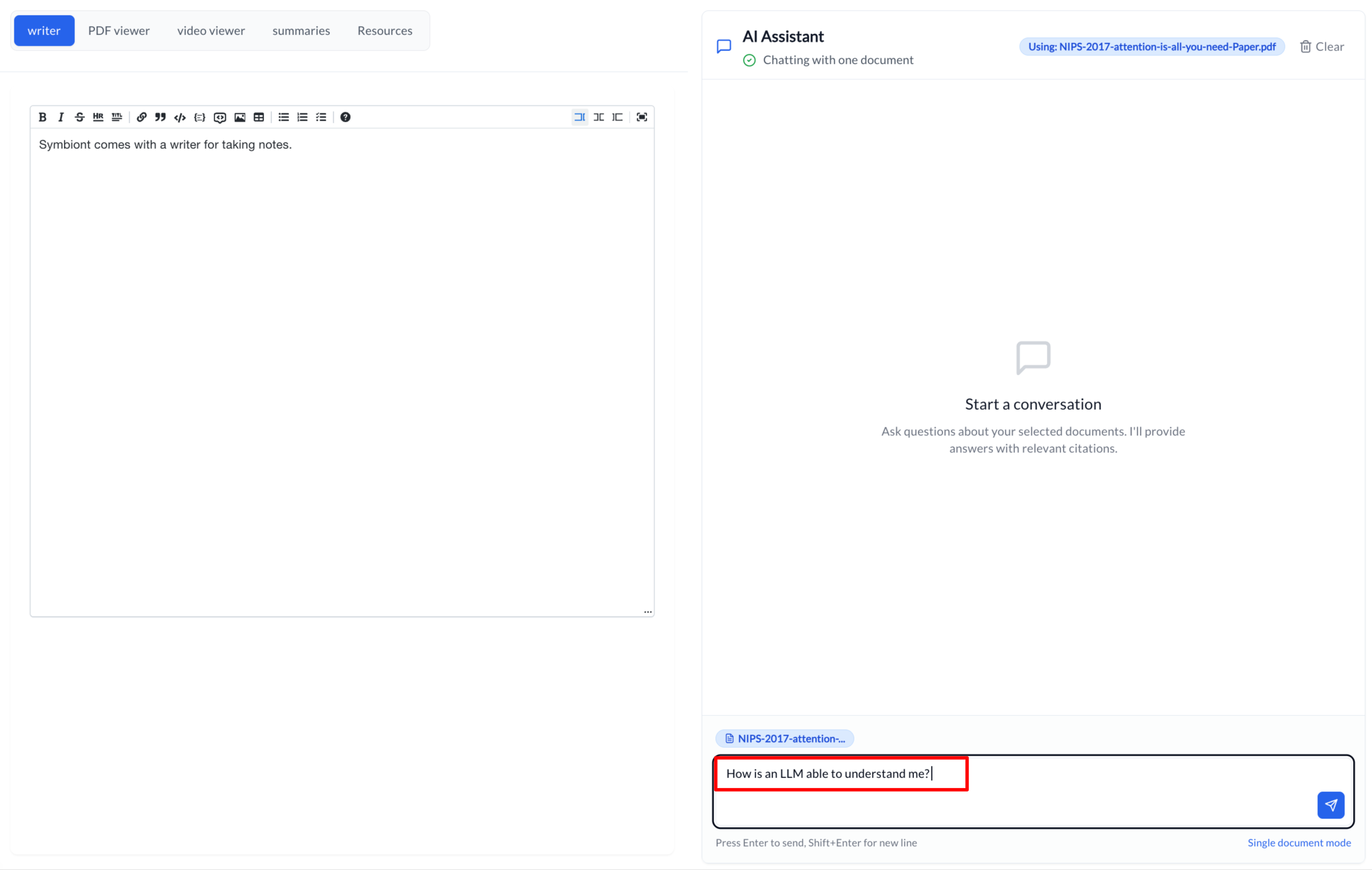
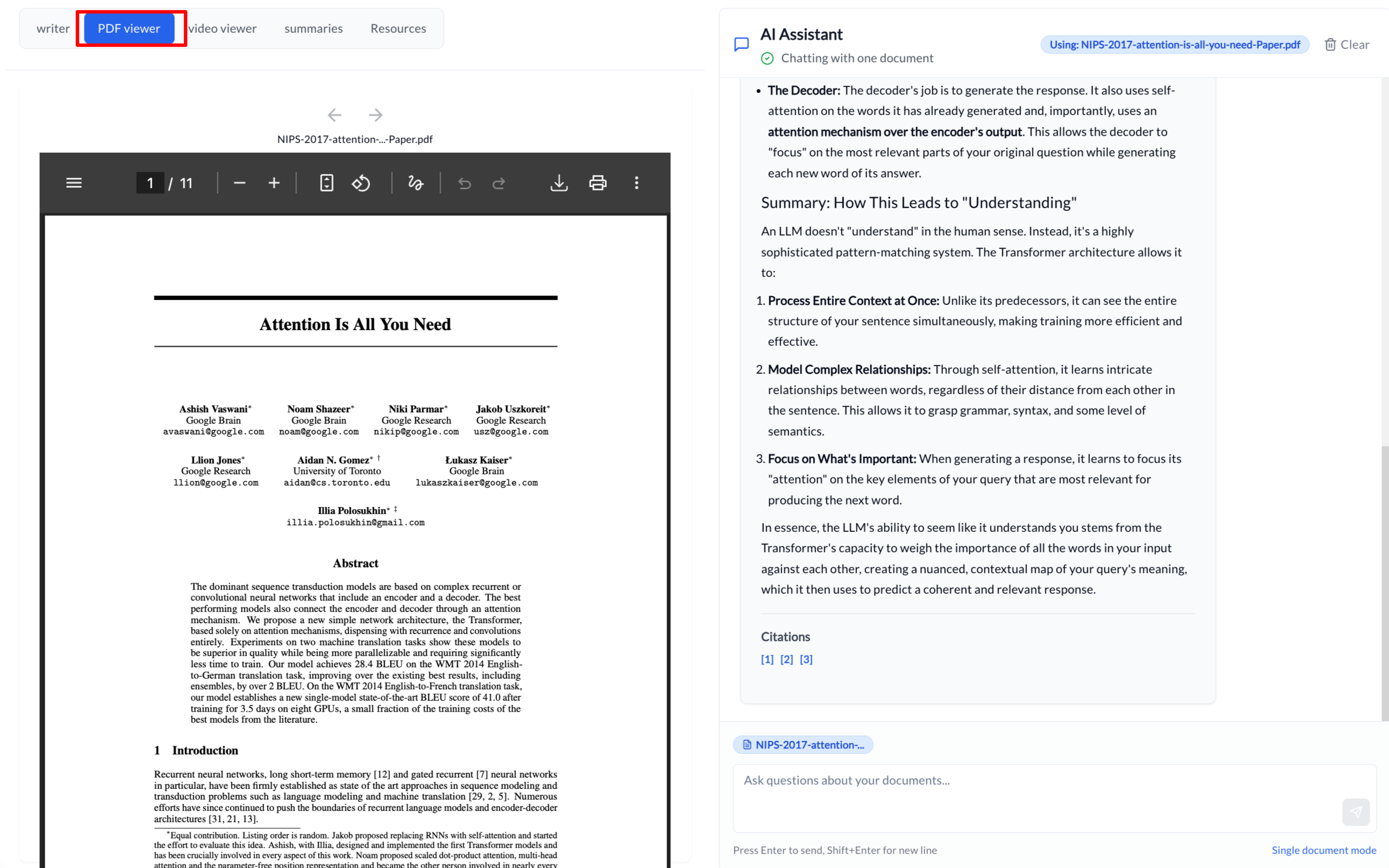
The AI will respond with answers based on your document, complete with citations showing exactly where it found each piece of information.
You can also see the uploaded PDF for reference.
Working with Multiple Documents
Here’s where things get powerful. Upload several related documents or maybe all the papers for a research project or all the meeting notes from last quarter. Then ask questions that span across them:
- “Are there any contradictions between these sources?”
- “Can you create a timeline of events from these documents?”
Symbiont searches across everything you’ve uploaded and synthesizes the information.
What Makes This Setup Great
Privacy First: Your documents stay on your computer. But do be aware that if you are using an LLM provider the data is sent to their servers. If you want to be more private, you can host your own LLM.
Cost Effective: Open source models through Netmind are generally cheaper than commercial APIs. Plus, you can switch models based on your task, use a smaller, faster model for simple questions and a larger one for complex analysis.
No Vendor Lock-In: Don’t like Netmind? Swap it out. Want to add OpenAI for certain tasks? Go ahead. The architecture is flexible.
Customizable: Since it’s open source (AGPL license), you can modify anything you want. Add new features, integrate with other tools, or customize the UI to match your workflow.
Going Further
Once you’re comfortable with the basics, here are some ideas:
- Upload a YouTube video and make them into lecture notes, or a presentation or a podcast transcript
- Upload webpages, articles or docs
- Set up multiple user accounts so your team can share and collaborate on document analysis and writing
Common Issues and Quick Fixes
-
Large files can take time to process, you can use a faster vector model or split the file into smaller chunks.
-
If AI responses are slow, try a smaller model. Smaller models can be faster and often can get you the information you need faster.
Wrapping Up
Symbiont gives you the power of AI document analysis without sacrificing privacy or control. By pairing it with Netmind’s open source models, you get a setup that’s both powerful and affordable.
With Symbiont, you have more control, your documents stay on your machine, and you choose where your queries go.
Ready to Start?
Whether you’re a researcher, developer, journalist, or just someone who values privacy, Symbiont offers a refreshing alternative to cloud-dependent AI tools. Give it a shot and see what you can build!
Symbiont is open source (AGPL v3). Special thanks to Netmind for making open source models accessible.